Most cash on delivery stores start the same way: an order form on the product page, a shared spreadsheet and a phone. Google Sheets does that job well at first. It costs nothing, the whole team can work in it at once, and every order becomes a row you can sort, filter and colour. This guide shows how to build a clean COD order sheet, how to keep it working as the team grows, and where its limits are: the ones Google publishes, and the ones you find out about on a busy evening. For the wider picture of automating the route from order to payout, read our guide to automating COD order management.
Why Google Sheets is enough to start
When a store takes a handful of orders a day, what it needs is not software. It needs one place where every order is written down, where you can see who called the customer and what happened next. A shared spreadsheet gives you that with no cost and nothing to install. It opens on a laptop or a phone, it keeps a history of changes, and a partner or a first agent can start working as soon as you share the link.
The sheet can also fill itself. A Google Forms order form can store its responses in a linked Google Sheet, and many landing-page builders can write one row per order into a spreadsheet. Watch one detail from day one: when you create the response sheet, the form’s collaborators get access to it automatically, but permission changes you make on the form later do not carry over to the sheet. Manage the two sets of access separately, or someone you removed from the form keeps seeing your customers’ names, phone numbers and addresses.
At low volume this setup has real strengths. You see every order at a glance, you understand each step because you do it yourself, and you learn which pieces of information actually matter before you pay for a tool.
Structure the sheet: one row per order
A good COD sheet rests on one rule: one order is one row, and one piece of information is one column. Never merge cells, freeze the header row, and never delete an order; change its status instead. Split the workbook into tabs:
- Orders: the live list, one row per order.
- Products: SKU, name, variant, selling price, purchase cost and stock on hand.
- Cities: the cities you deliver to, with the chosen carrier and its delivery and return fees.
- Lists: the allowed values for statuses, agents and cancellation reasons.
- Archive: closed orders from past months, so the main tab stays light.
In the Orders tab, plan for at least these columns: a unique order ID, the date and time received, the customer’s name, the phone number stored as plain text so the leading zero survives, the city, the address with a landmark, the product and variant, the quantity, the total to collect, the status, the agent in charge of the call, the number of call attempts, the carrier, the tracking number, the ship date, the amount actually collected, and a free notes column.
Statuses are the heart of the sheet. Keep few of them and give each one a precise meaning:
| Status | What it means | Who changes it |
|---|---|---|
| New | Order received, not yet called | Automatic entry or typed in |
| Call back | Customer unreachable or asked to be called later | Confirmation agent |
| Confirmed | Customer reached, address and amount checked | Confirmation agent |
| Cancelled | Refused on the phone, duplicate or fake number | Confirmation agent |
| Shipped | Parcel handed to the carrier, tracking number recorded | Logistics lead |
| Delivered | Parcel handed over and paid for | From the carrier |
| Returned | Parcel refused or undelivered, back in stock | Logistics lead |
| Paid out | Amount received from the carrier and checked | Owner |
Lock down data quality
A shared spreadsheet degrades fast: a typo in a status, a city spelled three ways, a formula overwritten by accident. Four Google Sheets settings prevent most of that damage.
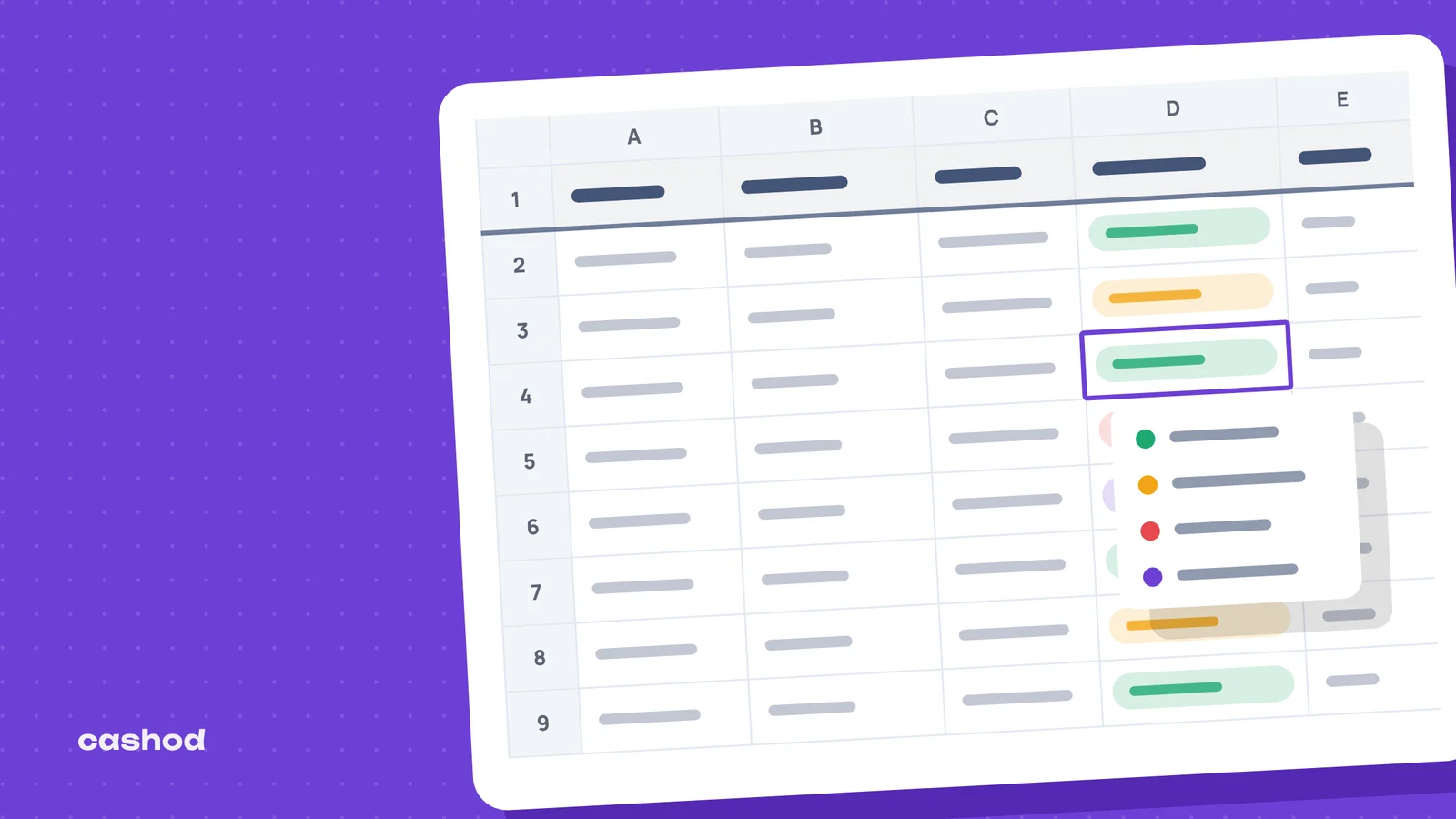
Dropdowns wherever you can. Status, city, agent, carrier and cancellation reason should all be picked from a list. By default, an entry that does not match an item on the list is rejected, which stops “confirmed”, “Confirmd” and “ok” from living side by side and skewing your counts.
Conditional formatting to catch duplicates. Conditional formatting accepts custom formulas based on the contents of other cells. Applied to the phone column, a rule such as =COUNTIF(E:E,E2)>1 colours every number that appears more than once. A customer who orders the same product twice in a few minutes, or a number that keeps coming back under different names, stands out before anyone dials.
Protected ranges. Protect the price columns, the formulas and the Products tab so only you and your lead can change them. Keep Google’s own warning in mind, though: protection should not be used as a security measure, because people with access can still print, copy and export the file. It prevents mistakes, not leaks.
A filter view per agent. A normal filter is imposed on everyone: when you add a filter, anyone with access to the spreadsheet sees it too. If two agents filter at the same time, they get in each other’s way. Filter views only apply to your own view of the sheet. Create a “My call-backs” view for each agent and a “Confirmed, to ship” view for logistics.
Add one habit: every evening, name a version of the file in its version history. On the day a row goes missing, you will know when it happened. Note that Google caps named versions at 15 per spreadsheet, and that restoring an earlier version clears the cell-by-cell edit history for changes made before the restore. To recover lost data, make a copy of the old version instead and paste back what is missing.
The daily routine of a COD spreadsheet
A well-built sheet is not enough on its own; the routine is what holds it together. A typical day breaks into six passes.
- Intake. In the morning, check the new rows, complete the ones that arrived with gaps, and deal with the duplicates highlighted in colour.
- Confirmation. Each agent opens their filter view, calls, then updates the status, the attempt count and a short note. A call-back should carry the time of the next try.
- Shipping. Logistics filters the confirmed orders, enters them in the carrier’s file or portal, and copies every tracking number back into the sheet.
- Tracking. Several times a week, someone opens the carrier’s portal and types the statuses back by hand: delivered, refused, unreachable, on its way back.
- Payout. When the carrier transfers the cash, its statement is matched against the sheet, row by row, and paid orders move to “Paid out”.
- Returns. Every parcel that comes back is marked “Returned”, inspected, then added back to stock in the Products tab.
Look closely at steps three to six: each one means copying information from one system into another. That is where most errors in a COD sheet come from. A tracking number pasted on the wrong row, a return never put back into stock, a payout that does not add up and that nobody has time to explain.
The limits of Google Sheets for a COD business
Google publishes its spreadsheet’s ceilings itself. None of them stops a small store, but together they mark the edge.
- Size. A spreadsheet can hold up to 20 million cells. That sounds far away, but every tab, column and formula counts, and a heavy workbook slows down long before the cap, especially on an agent’s phone.
- People working at once. A file can only be edited from up to 100 open tabs or devices at a time; beyond that, only the owner and some editors can still edit. Sharing by name is capped at 600 email addresses per file.
- Automation. Apps Script automations that send a message or move rows usually run on triggers. Their total runtime is limited to 90 minutes a day on a consumer account and 6 hours on a Google Workspace account, and Google warns that these limits can be reduced or changed at any time without notice.
- Consolidation. To bring several stores together, sellers often link files with IMPORTRANGE. But any update to the source document makes every open receiving document refresh, so the faster orders come in, the slower the dashboard gets.
The costliest limits are not technical, though. The sheet talks to no carrier, so every parcel is created, tracked and reconciled by hand. It does not know your real stock unless someone counts it down. It cannot reserve a row for one agent: anyone who can edit the file sees every customer, with their phone number and address. And it cannot tell you, short of digging through the history, who moved an order from “Confirmed” to “Cancelled”.
Signs it is time to move to a dedicated tool
There is no universal threshold. Instead, these are the situations that come up again and again among sellers who left their spreadsheet behind:
- You hire a second confirmation agent, and the two of them trip over each other in the same file.
- An order went missing, or shipped twice, and nobody knows how.
- You spend more time copying tracking numbers than calling customers.
- Reconciling the carrier’s payouts takes a whole day, and unexplained gaps remain.
- You open a second store and juggle several files.
- You want to confirm part of your orders over WhatsApp, with messages sent automatically.
- You share customer details with remote agents and want to limit what each of them sees.
If none of these signs shows up, staying on Google Sheets is a sensible choice. Once two or three of them pile up, the hidden cost of the spreadsheet, in hours and lost orders, usually exceeds the cost of a tool.
Moving from Google Sheets to Cashod without breaking things
Leaving a spreadsheet does not mean starting over. Google Sheets is one of the order sources Cashod connects; the Google Sheets integration page explains how orders from the sheet come into Cashod. To compare the two ways of working point by point, see our Cashod vs Google Sheets page.
Once orders sit in one place, the jobs the spreadsheet left to you by hand change shape. Cashod includes a call center where agents confirm COD orders by phone, and it can confirm orders over WhatsApp, including with an AI agent. One Cashod account can manage several stores, so there is no more juggling between files. Cashod tracks returned parcels, and each carrier’s delivery and return fees are set per city, just as your Cities tab did.
The integrated carriers are listed on the Integrations page. Any other carrier can be added manually, without automatic shipment creation or tracking. Cashod support answers by email, chat and phone, Monday to Friday, 9 AM to 6 PM GMT (Morocco time).
Keep your old file as an archive during the switch: it holds the memory of your first months, and the column list you built doubles as a checklist to make sure nothing is missing in the new setup.
In short
Google Sheets is an excellent tool for launching a COD store: one row per order, clear statuses, dropdowns, highlighted duplicates, protected ranges and a filter view per agent. Its limits come less from its capacity than from the copying it forces between the store, the phone, the carrier and the bank. While that copying stays short, keep the spreadsheet. When it fills your days, it is time to change tools.